

If your office server is getting old, replacing it may seem like the next obvious expense. But before buying new hardware, take a closer look at what your Microsoft 365 subscription already includes. Many Long Island businesses use Microsoft 365 primarily for email and Office apps, without fully leveraging SharePoint Online, OneDrive, and Teams for everyday file sharing and collaboration.
That does not mean every server can go. The right choice depends on what your current server does, which software your employees use, and how your files are accessed.
Not sure if your business still needs a server? LI Tech Solutions can help you review your current setup and explore your options. Contact us to schedule a consultation.
Can Microsoft 365 Replace Your Small Business Server?
For some businesses, yes. Microsoft 365 for a small business can handle several tasks that once required office equipment. Exchange Online hosts business email, SharePoint Online holds shared documents, and OneDrive lets employees store and sync their own work files.
A local server may also run accounting software, databases, or other systems that cannot simply be migrated to SharePoint. That distinction matters. You might be able to retire a file server while keeping a separate system for a business application.
With the right Microsoft business support, businesses can review which existing server functions their Microsoft 365 subscription can handle before investing in replacement hardware.
Which Microsoft 365 Tools Can Replace a File Server?
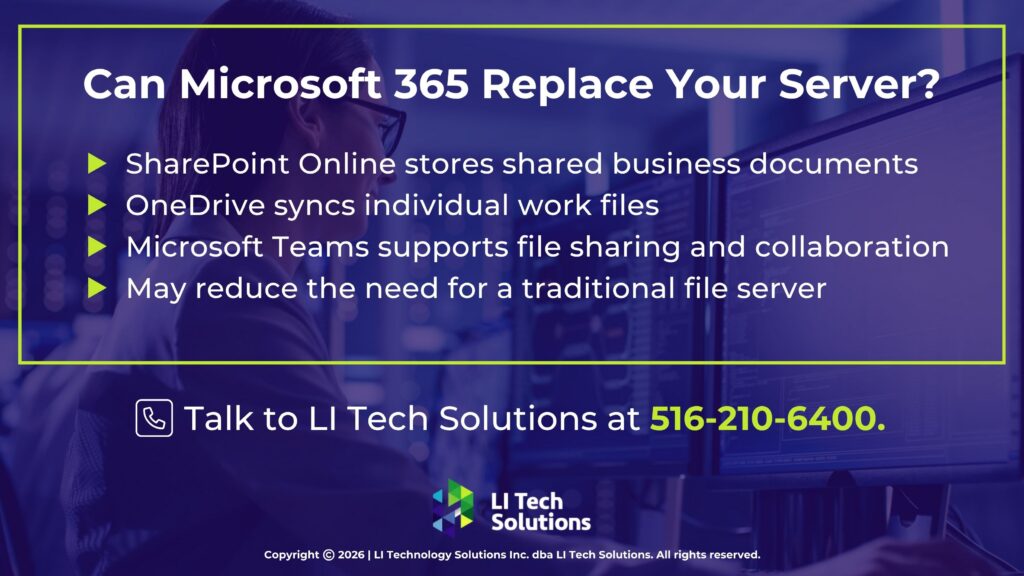
SharePoint Online for Shared Business Documents
SharePoint Online gives employees a central place to store and work on documents. A small business can set up libraries for departments or projects, control who can access them, and track document versions.
For offices that mainly use a server as a shared folder, SharePoint may be a practical alternative.
OneDrive for Individual Work Files
OneDrive for Business is better suited to an employee’s own working files. It syncs files between the cloud and supported devices, and selected files can be kept available offline.
Employees may also access synced SharePoint libraries through File Explorer, although this is not identical to using a traditional mapped network drive.
Microsoft Teams for Collaboration
Microsoft Teams brings conversations, meetings, and shared files together. Files shared in standard Teams channels are stored in SharePoint.
This can make daily document work easier, especially for employees working from home, traveling, or collaborating across locations without relying on a traditional VPN connection to an office file server for cloud-hosted files.
These services complement one another. Choosing where files belong is part of a sound migration plan, not a detail to leave until the end.
Why Consider Cloud Solutions Instead of Another Server?
A new server involves more than the purchase price. Businesses must consider installation, maintenance, hardware failures, power use, backups, and future replacement.
Cloud solutions for small businesses can reduce some of those local responsibilities while making shared documents easier to access outside the office. Well-planned cloud infrastructure solutions can also help businesses reduce their dependence on physical office hardware.
Microsoft 365 allows employees to work together on supported files without emailing different versions back and forth. If your subscription already includes the needed services, using them more fully may prevent spending on hardware that only supports basic file sharing. Cloud subscriptions can also shift some upfront capital spending toward more predictable recurring operating expenses.
Still, cloud services are not automatically cheaper or maintenance-free. Migration, licensing, storage, backup services, employee training, security administration, and ongoing support all belong in the cost comparison.
The goal is not to move everything online at any price. Choose the setup that makes sense for your business.
When Might You Still Need a Physical Server?
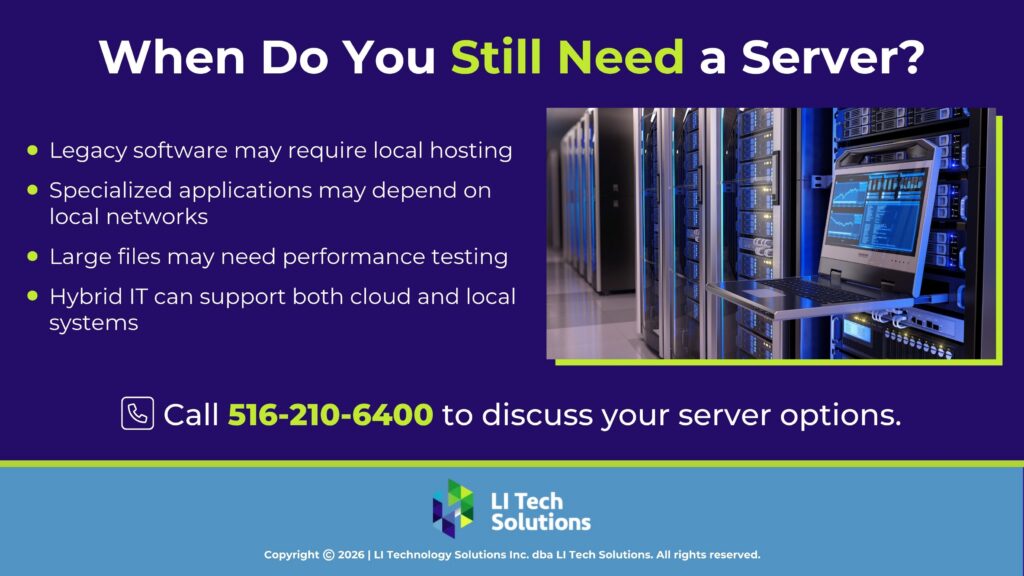
Not every workload belongs in SharePoint or OneDrive. You may need local or separately hosted infrastructure if your business relies on:
- Older accounting, inventory, or office software that requires a server or database.
- Specialized applications that depend on local network connections.
- Large design or engineering files that need careful performance testing.
- Printing, identity, or other network services that have not been replaced.
- Workflows that must continue when internet access is unreliable.
Microsoft Entra ID and, with suitable licensing, Microsoft Intune can take over some identity and device-management tasks. But they do not automatically replace every Windows Server or Group Policy function.
Sometimes a hybrid approach is the better option: move shared documents to the cloud while retaining systems that require local or dedicated hosting.
When comparing small business server alternatives, consider your software requirements, current infrastructure, and long-term costs before deciding whether to replace or retire existing hardware.
How Do You Migrate a File Server to SharePoint Online?
A Microsoft 365 cloud migration should start with an assessment, not a bulk file upload. Before making changes, planning an IT change means understanding how the move could affect your applications, files, and employees. Following Microsoft’s file-share migration guidance, businesses should also review existing files, permissions, and storage needs before moving documents to SharePoint Online or OneDrive.
A sensible process includes five steps:
- Inventory the server. Identify shared folders, file types, users, permissions, and software that relies on those folders.
- Review Microsoft 365 licensing. Confirm the services, user entitlements, storage limits, and security and device management features available in your specific plan before designing the new setup.
- Plan the file structure. Decide what belongs in SharePoint libraries and what belongs in individual OneDrive accounts. Rebuild access rules where needed.
- Test before switching. Use suitable migration tools, check that files open correctly, confirm permissions, and resolve sync issues with a small group first.
- Prepare and support employees. Show teams where documents live, how to access files remotely, and whom to contact for help. Continue supporting adoption after the migration.
Businesses looking to migrate a file server to SharePoint Online should also check file names, folder structures, and application dependencies. Switching off the old server before confirming those details can interrupt normal work.
LI Tech Solutions approaches cloud migration by first understanding the systems a business actually uses, then recommending a practical plan rather than a one-size-fits-all move.
What About Security, Backup, and File Access?
Moving files to Microsoft 365 does not remove the need for IT management. User permissions must be reviewed, multifactor authentication configured, and access updated when employees change roles or leave.
Syncing a file is not the same as maintaining an independent backup. Version history and recovery features are useful, but businesses still need a recovery plan that fits their data and risks.
A reliable approach to business data protection should include backup planning, access controls, and recovery procedures. Cloud managed services can also help keep accounts, sharing settings, and security controls under review.
Find Out Whether Your Long Island Business Needs Another Server
Before approving another hardware purchase, ask whether you are getting full value from the Microsoft 365 tools your business already pays for.
A review of your server, software, licenses, and security requirements will show what can move and what should stay.
LI Tech Solutions provides cloud consulting services and Cloud Migration Services for organizations across Long Island, NY. We can help you assess your current environment and plan the next steps.
Before investing in another server, schedule an IT consultation with LI Tech Solutions to explore your options and make a plan that fits your business.
